Introduction
MicroStation is a 3D design tool. It lets you model objects in a 3D space, and also works in 2D. Often, we want to model an object and then rotate it. Rotating an object is 2D is simple. In this article, we'll discuss how to move an element. Moving an element is a simple example of geometric transformation.
Geometric Transformation
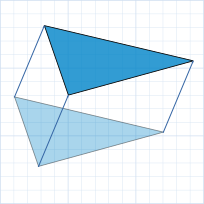
A mathematical
transformation
is the application of an algorithm to move, rotate, scale, mirror or skew an object.
We perform that operation by taking each point of the object's geometry, and transforming that point.
The illustration above shows a triangle being moved.
In that example, we have three points to transform.
A transformation is embodied mathematically in a
matrix.
MicroStation VBA provides the Transform3d.
Transform3d Help
A Transform3d is a matrix, like a Matrix3d, with an additional column that stores translation data.
The Transform3d contains twelve Double numbers organised as three rows of four columns …
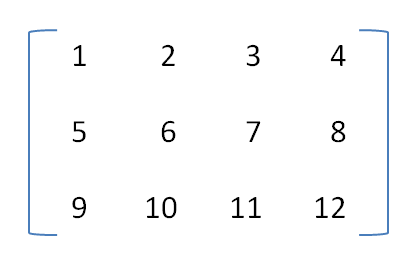
You should not attempt to read or write an individual number on a Transform3d, but use one of the methods provided by MicroStation VBA.
VBA help documents over twenty-five methods applicable to the Transform3d.
Transform3d Methods
Initialise a Transform3d
There are several ways to initialise a Transform3d …
- From a rotation matrix:
Transform3dFromMatrix3d - From a rotation and a translation:
Transform3dFromMatrix3dAndFixedPoint3d - From a matrix times a transformation:
Transform3dFromMatrix3dTimesTransform3d - Rotation about a specified line:
Transform3dFromLineAndRotationAngle - … and a few more that you'll find in VBA help
For example, if you want to rotate a DGN element, choose Transform3dFromMatrix3d.
There's an example here.
If you want to move an element, choose Transform3dFromPoint3d or Transform3dFromMatrix3dAndFixedPoint3d
(you can specify no rotation with the
identity matrix.
Then, use that transformation with the Element.Transform method.
The Element.Transform method is a shortcut to geometric transformation:
it gets a list of the element's points, and applies the transformation to each point in turn.
Some elements (e.g. a TextElement or CellElement have just one point),
others have two points (e.g. a LineElement)
and others have more (e.g. a ShapeElement).
Transform an Element
Calculating your transform is the hard part. Using the transform to modify a DGN element is easy …
Dim oElement As Element
'  Get element from somewhere...
'  Set oElement = ...
Dim transform As Transform3d
transform = CalculateTransformSomehow ()
oElement.Transform transform
oElement.Rewrite
Consult the examples in the VBA help documentation for more insight.
Questions
Post questions about MicroStation programming to the MicroStation Programming Forum.

