Introduction
MicroStation is a 3D design tool. It lets you model objects in a 3D space, and also works in 2D. Often, we want to model an object and then rotate it. Rotating an object is 2D is simple. In this article, we'll stay with 2D when discussing rotation. If you're interested in 3D rotation, read our article about 3D rotation.
You can probably imagine something that's rotated by an angle in 2D …

While that looks straightforward, here's an alternative description of that same rotation: "Rotate a line by angle θ counter-clockwise about the Z axis in 3D space". You can't see the Z axis, because it's coming straight at you out of the screen. But, in a 3D world, you must think 3D! Use of arcane terminology provides the vocabulary necessary to communicate concisely the idioms of geometric algebra.
Angles: Degrees & Radians
Drawing in a 2D world, you're comfortable with angles measured in degrees. In 3D maths and computer-aided-design, angles are measured internally in radians. Radians and degrees are different ways of expressing the same rotation, just as miles and kilometers say the same thing about a road journey. It's just that, as humans, we're more accustomed to using degrees to measure rotation.
MicroStation VBA provides functions Degrees and Radians to convert degrees↔radians.
Copy-and-paste the following code into a VBA module …
Private Sub TestRadians()
    Const angle1                            As Double = 30 ' degrees
    Const angle2                            As Double = 40 ' degrees
    Dim r1                                  As Double
    Dim r2                                  As Double
    r1 = Radians(angle1)
    r2 = Radians(angle2)
    Debug.Print "angle1 + angle2 =" & CStr(angle1 + angle2) & " degrees"
    Dim result                              As Double
    result = r1 + r2
    Debug.Print "r1 + r2 =" & CStr(result) & " radians or " & Degrees(result) & " degrees"
End Sub
Here's what you'll see in VBA's Immediate window when you execute that subroutine …
angle1 + angle2 =70 degrees
r1 + r2 =1.22173047639603 radians or 70 degrees
Angles: Matrices
Using an angle to represent rotation has drawbacks, particularly in 3D.
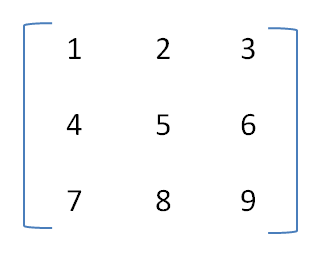
A
matrix
is a 3x3 array of Double numbers.
It can represent many things in the wider world of engineering and science, but in CAD it generally represents a rotation.
Most engineering, scientific and CAD mathematics uses a rotation matrix to define 2D or 3D rotation.
For 2D work, a 2D matrix (2 x 2 numbers) is sufficient.
For 3D work, a 3D matrix (3 x 3 numbers) is required.
A matrix can be of any size, but in MicroStation VBA a 3D matrix — the Matrix3d — is ubiquitous.
MicroStation VBA doesn't provide a 2d matrix, because the 3 x 3 Matrix3d works for both 3D and 2D.
Matrix3d
The MicroStation VBA Matrix3d is a set of 3x3 Double numbers.
MicroStation VBA has a long list of functions that operate on a Matrix3d:
search VBA Help for Matrix3d Type.
Let's explore a rotation as a matrix...
Const angle1                            As Double = 30 ' degrees
Dim r1                                  As Double
r1 = Radians(angle1)
Dim m1                                  As Matrix3d
Const ZAxis                             As Long = 2
m1 = Matrix3dFromAxisAndRotationAngle(ZAxis, r1)
Matrix3dFromAxisAndRotationAngle() is one of many MicroStation VBA functions that operate on a Matrix3d.
Matrix Multiplication
When we want to add two rotations expressed in degrees or radians, we simply add them …
30° + 40° = 70°
When we want to combine two angles expressed as matrices, we multiply those matrices.
It's counter-intuitive when compared to angles measured in degrees.
To add 30° and 40°, we simply add them.
We don't do that with matrices: if matrix30 represents 30° and matrix40 represents 40°,
then the combined result is matrix30 x matrix40.
To show that working, next we construct two matrices from angles, then multiple the matrices to add the angles. Finally we convert the result to a new matrix and read its value in radians …
Const angle1                            As Double = 30 ' degrees
Const angle2                            As Double = 40 ' degrees
Dim r1                                  As Double
Dim r2                                  As Double
r1 = Radians(angle1)
r2 = Radians(angle2)

Dim m1                                  As Matrix3d
Dim m2                                  As Matrix3d
Const ZAxis                             As Long = 2
m1 = Matrix3dFromAxisAndRotationAngle(ZAxis, r1)
m2 = Matrix3dFromAxisAndRotationAngle(ZAxis, r2)
Dim multiplication                      As Matrix3d
'  Multiply two rotation matrices to obtain the sum of their contained angles
multiplication = Matrix3dFromMatrix3dTimesMatrix3d(m1, m2)
Dim result                              As Double
If Matrix3dIsXYRotation(multiplication, result) Then
	Debug.Print "30 + 40 degrees=" & Degrees(result)
Else
	Debug.Print "Matrix has skew, scale or mirror"
End If
When you copy and execute the above code, I hope you see the answer 30 + 40 degrees=70.
Rotate an Element using Element.Rotation
Some DGN elements have a Rotation property: text and cells spring to mind.
If you want to rotate an element that has the Rotation property,
then calculate a Matrix3d variable as shown above and apply it to the element …
Const angle1                            As Double = 20 ' degrees
Dim r1                                  As Double
r1 = Radians(angle1)

Dim m1                                  As Matrix3d
Const ZAxis                             As Long = 2
m1 = Matrix3dFromAxisAndRotationAngle(ZAxis, r1)
Dim oText                               As TextElement
' Get text from somewhere
Set oText = ...
oText.rotation = m1
If you want to rotate an element that doesn't have a Rotation property, you
have a little more work to do.
Create an Element having Rotation
Some CreateXxxElement methods take a rotation expressed as a Matrix3d.
Supply your rotation matrix to the create method.
MicroStation multiplies your rotation with the matrix stored in the element to obtain a new rotation …
Dim m1                                  As Matrix3d
m1 = ...
Dim oText                               As TextElement
' Create new text with rotation supplied by m1
Set oText = CreateTextElement1 (Nothing, "Text rotated by m1", origin, m1)
Create an Unrotated Element
Create an element with no rotation by specifying the identity matrix …
Dim oText                               As TextElement
' Create new text with no rotation
Set oText = CreateTextElement1 (Nothing, "Text rotated by m1", origin, Matrix3dIdentity)
Rotate any Element
Rotate any element, whether or not it has a Rotation property, by building a rotation matrix that you use
to build a transform matrix.
Then apply that transform matrix using the Element.Transform method that is implemented by all graphical DGN elements.
First, create a rotation matrix using one of the methods described above …
Dim rotation                               As Matrix3d
' Calculate rotation matrix
rotation = Matrix3dXxx ()
Next, create a transform matrix from that rotation matrix …
Dim rotation                               As Matrix3d
rotation = Matrix3dXxx ()
Dim transform                              As Transform3d
' Calculate transform matrix
transform = Transform3dFromMatrix3d (rotation)
Finally, apply the transform matrix to your element …
Dim rotation                               As Matrix3d
rotation = Matrix3dXxx ()
Dim transform                              As Transform3d
transform = Transform3dFromMatrix3d (rotation)
Dim oElement                               As Element
'  Get element from somewhere
Set oElement = ...
'  Transform the element
oElement.Transform transform
The Identity Matrix
Read more about the identity matrix.
Questions
Post questions about MicroStation programming to the MicroStation Programming Forum.


